
How to Create Users & Connect Customers
A simple, visual walkthrough for resellers. No technical knowledge needed — follow these steps to set up any customer on Android or iPhone.
Important: Android vs. iPhone (iOS)
Android: HushTunnel is live on Google Play. Customers can install HushTunnel and log in with their Email & Password — or, if they prefer another app, they can scan the QR code in v2rayNG or NekoBox.
iPhone / iPad (iOS): The HushTunnel iOS app is not available on the App Store yet. Share the QR Code or Permanent QR Link with your customer so they can connect using V2Box, FoXray, or Shadowrocket.
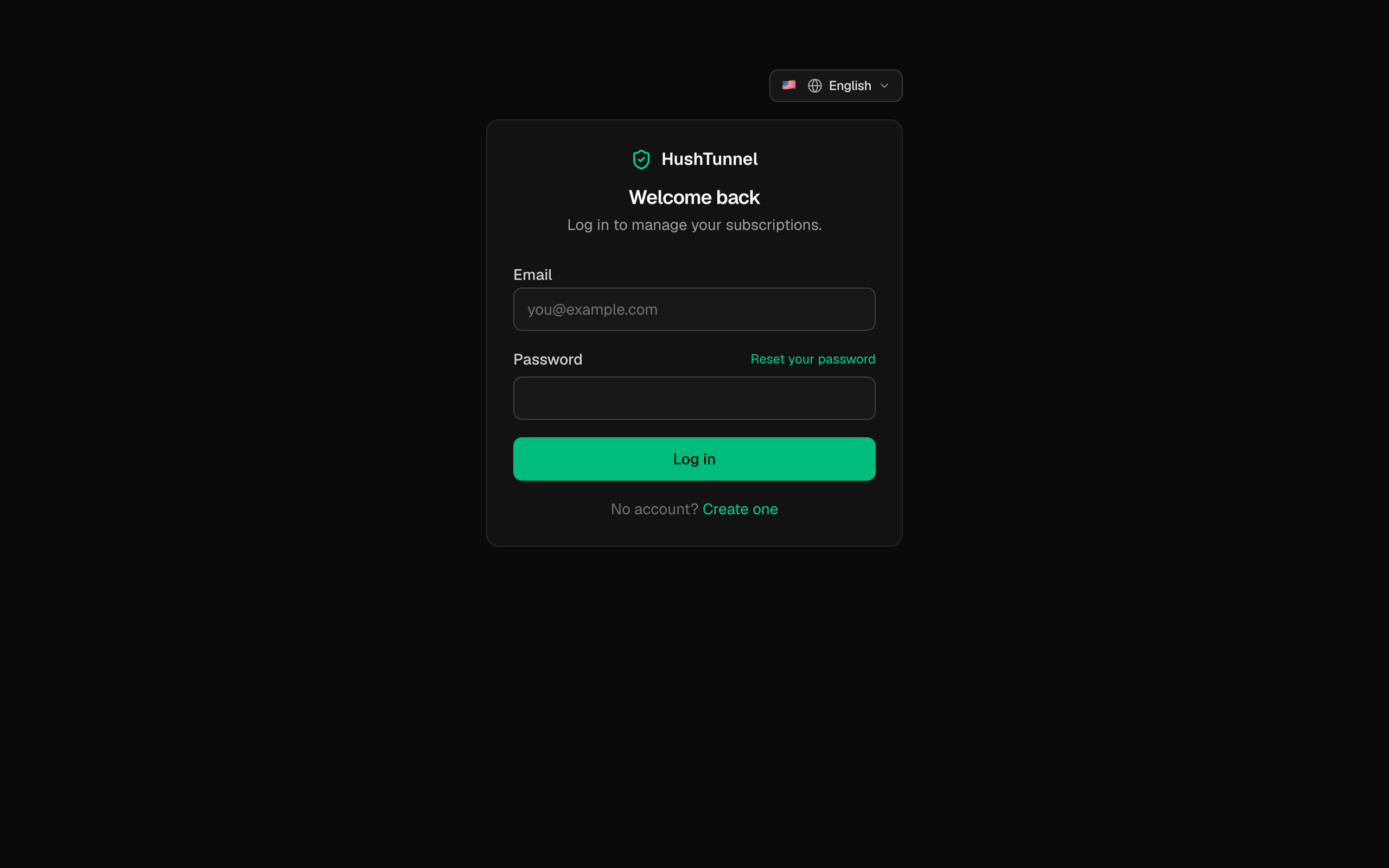
Step 1: Sign In & Switch to Your Language
Open HushTunnel in your browser (or mobile app), tap the language icon at the top to pick English or فارسی (Persian), and sign in with your reseller email and password.
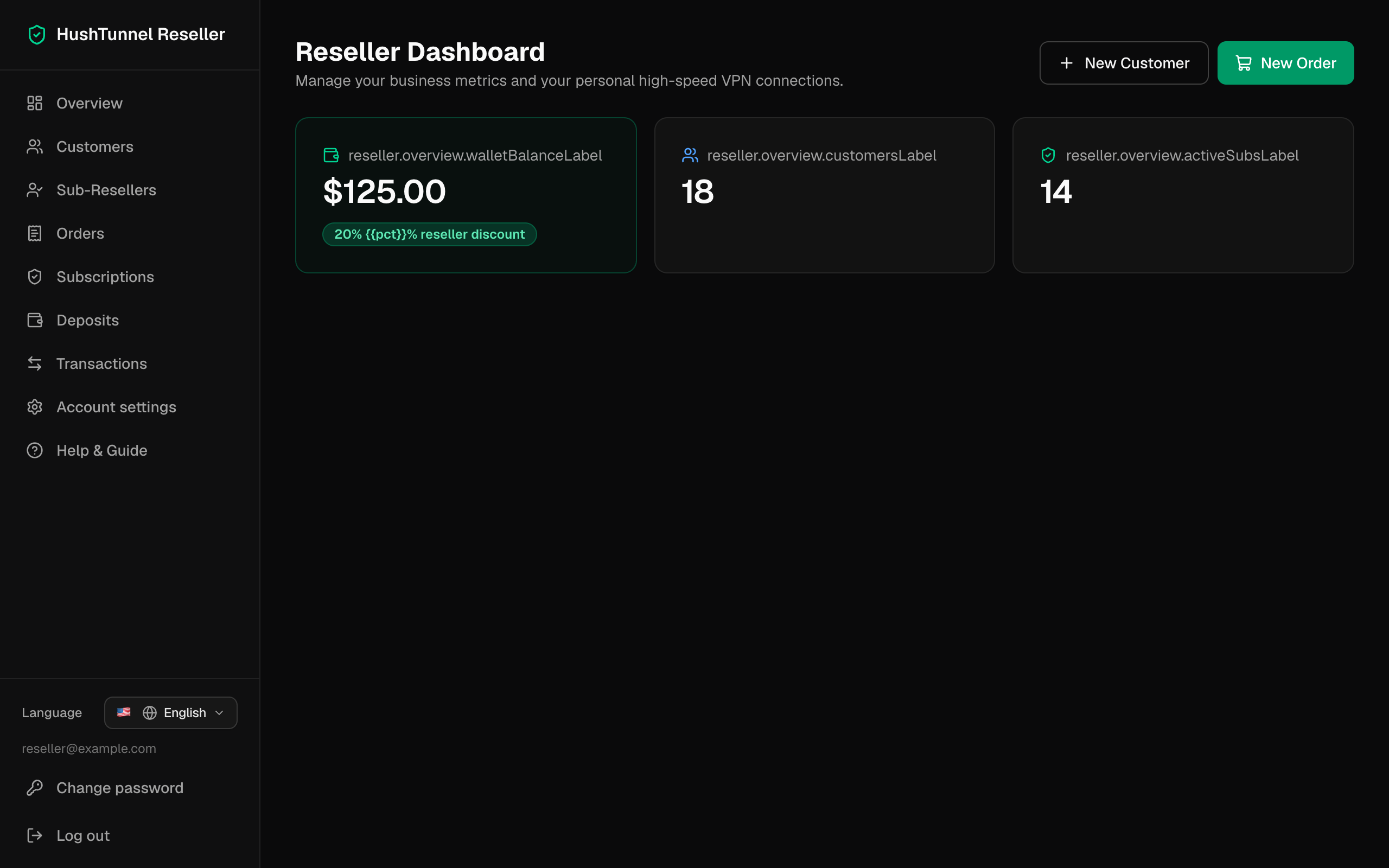
Step 2: Check Your Dashboard & Balance
Your Reseller Dashboard shows your available wallet balance, your current discount tier, and quick buttons to add a customer or create an order.
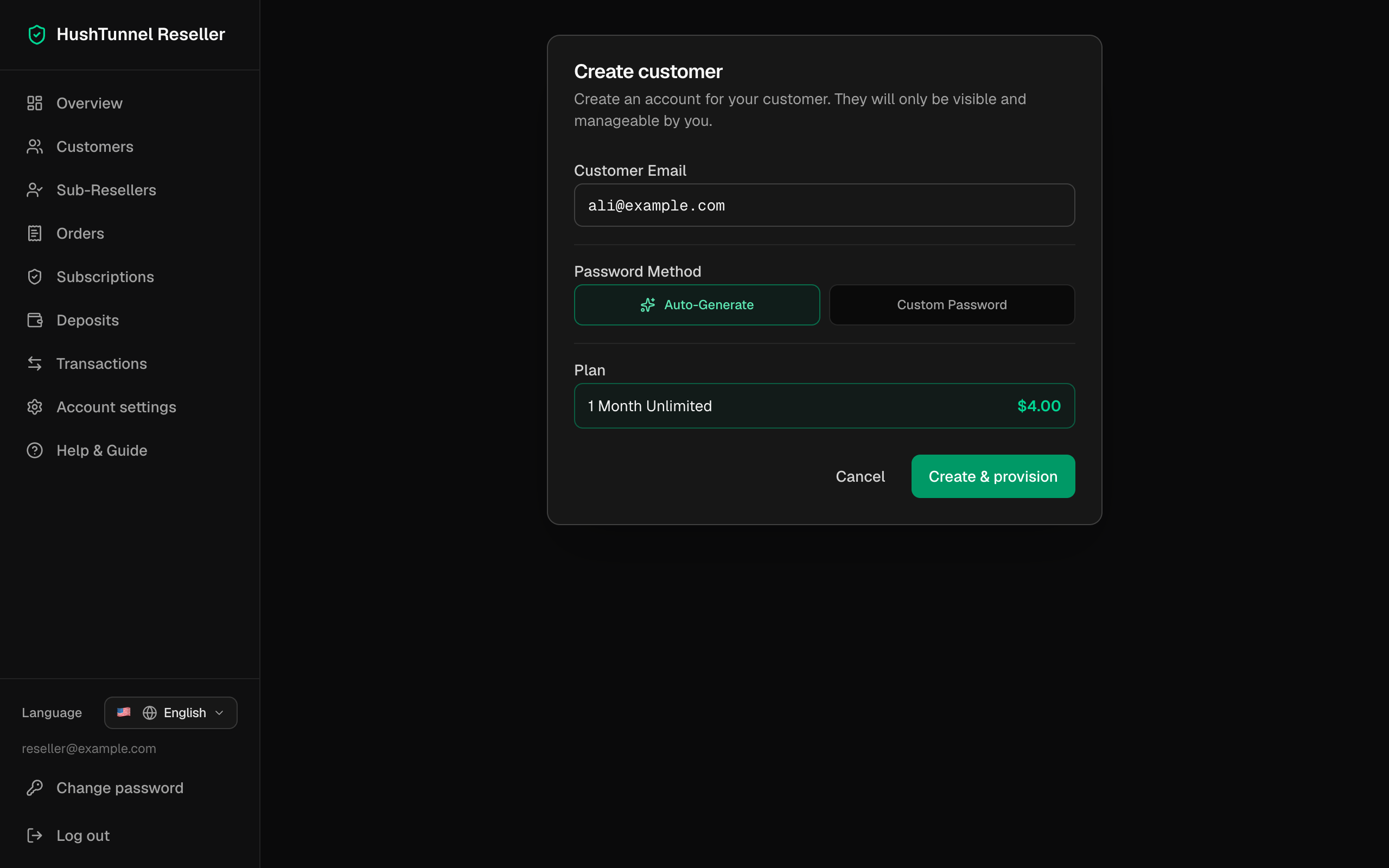
Step 3: Create a Customer & Choose a Plan
Click 'New Customer', type the customer's email (or tap a quick email domain chip like @gmail.com), choose auto-generated or custom password, then select a VPN plan for them.
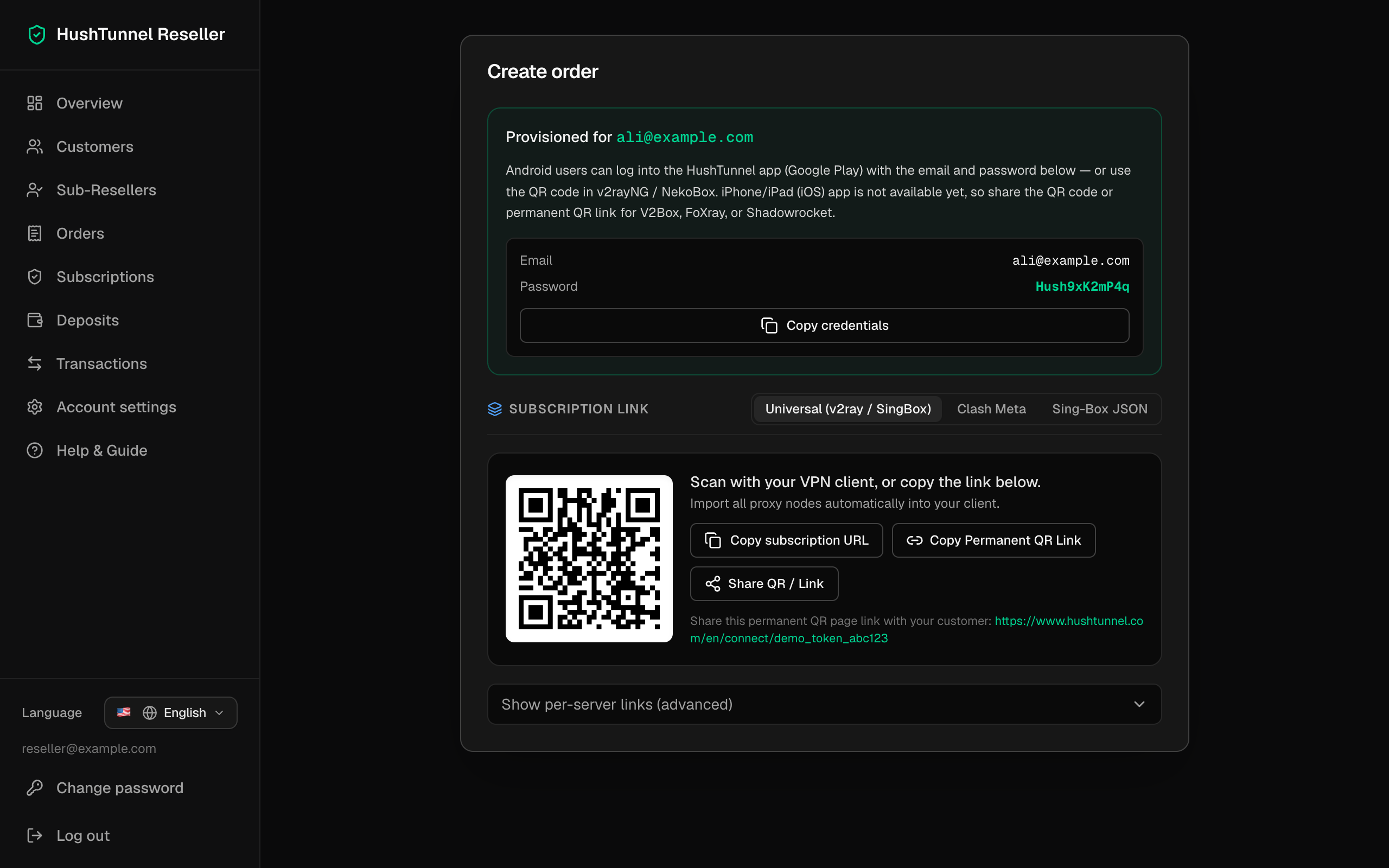
Step 4: Copy Login Details, QR Code & Permanent Link
Right after creating the customer's plan, you will see their Email & Password with a one-tap 'Copy Credentials' button, plus their scannable QR code, 'Copy Permanent QR Link' (never expires), and 'Share QR / Link'.
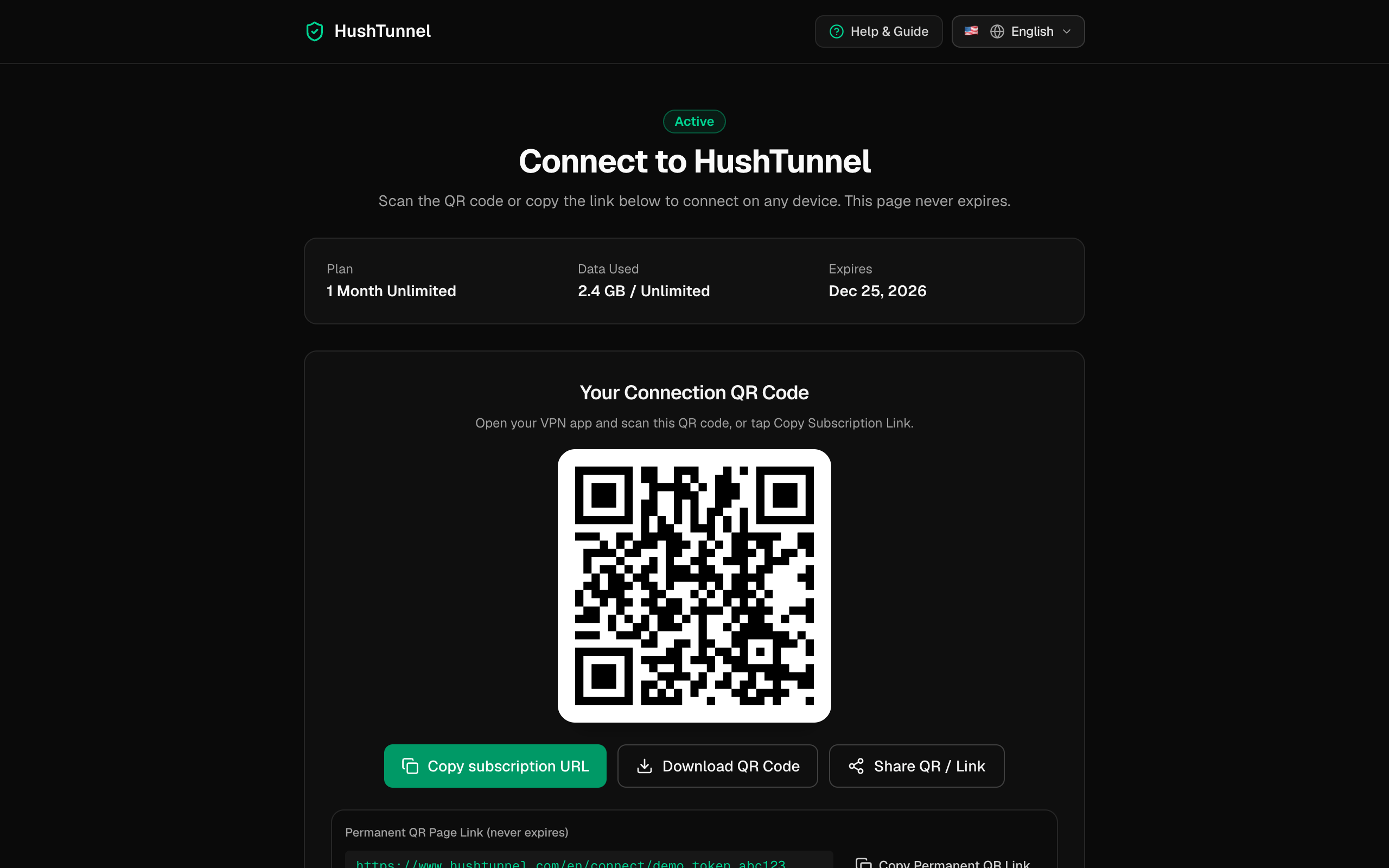
Step 5: What Your Customer Sees on the Permanent QR Link
When you send the Permanent QR Link to your customer, they can open it anytime without logging in to scan the QR code, download the QR image, or follow Android/iOS instructions.
Step 6: Manage Customers Later (Renew, Password, QR)
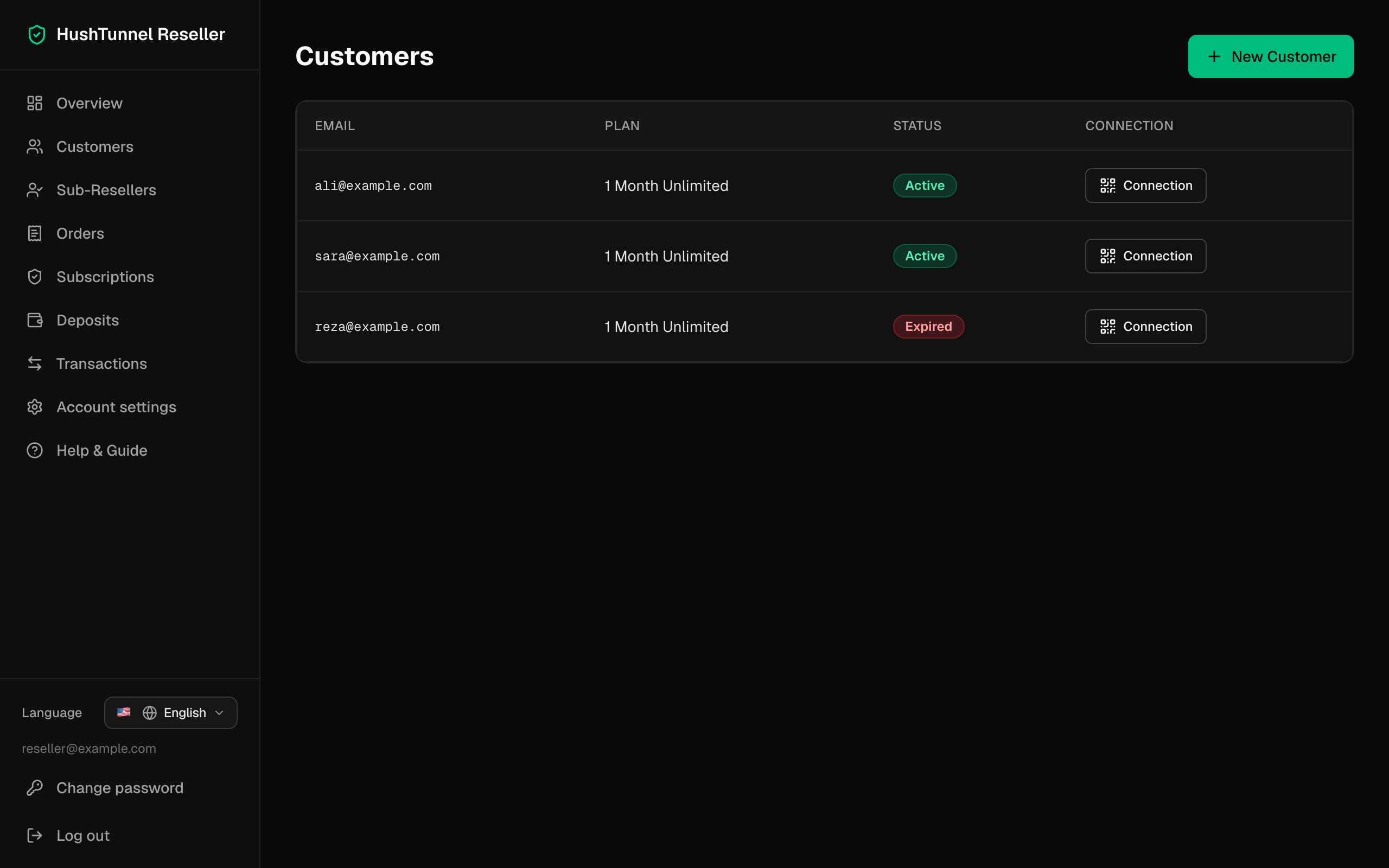
In the Customers tab, tap any customer to view their active plans, extend/renew their subscription, reset their password, or open their QR code again.
Ready-to-Send Messages for Your Customers
Copy one of these simple messages and paste your customer's details before sending on WhatsApp or Telegram.
Message for Android Customers
Hi! Your HushTunnel VPN account is ready. Option 1 (Easiest): Download 'HushTunnel' from Google Play and sign in with your Email & Password. Option 2 (Other apps): Open v2rayNG or NekoBox and scan the QR code / open the permanent QR link I sent you.
Message for iPhone / iPad (iOS) Customers
Hi! Your HushTunnel VPN is ready. Our iOS app is not on the App Store yet, so please install 'V2Box', 'FoXray', or 'Shadowrocket' from the App Store. Then open the Permanent QR Link I sent you and scan/import the QR code to connect.
Common Questions
My customer lost their QR code. How do I send it again?
Go to Customers, open the customer, and click 'View QR / Connection'. The Permanent QR Link never expires, so you can send it again anytime.
An iPhone customer cannot find HushTunnel on the App Store.
That is expected — the HushTunnel iOS app is not released yet. Ask them to install V2Box, FoXray, or Shadowrocket from the App Store and scan their QR code or open the Permanent QR Link.
Can an Android customer use v2rayNG instead of the HushTunnel app?
Yes! They can either log into the HushTunnel Google Play app with Email & Password, or scan their QR code in v2rayNG or NekoBox.
Does the Permanent QR Link ever expire?
No. The QR page link stays valid permanently as long as the customer's subscription is active (even after they renew).